Configure Wake-on-LAN
Balsa provides a multi-device assisted Wake-on-LAN (WoL) utility.
INFO
Wake-on-LAN currently only supports desktop devices with a LAN connection.
The Wake-on-LAN feature provided by Balsa does not perform intranet penetration (NAT traversal). You still need one device to be in the same network environment as the target device to be awakened. An old smartphone is often a great candidate for this task.
1. Enable Wake-on-LAN for Your Hardware
- You need to enter the BIOS, usually by repeatedly pressing the DEL key during startup.
- Enter Advanced Mode (some motherboards may not have this specific label).
- Use the arrow keys to navigate and find Power Management or APM Configuration.
- Enable any of the following features:
Wake on LAN / WOLPME Event Wake UpPower On By PCI-E / PCI DeviceRemote Wake Up
- Disable any Energy-Related Products (ErP) or power-saving modes.
TIP
Due to differences in hardware, we cannot provide a universal guide. You may need to use a search engine to determine the specific steps for your motherboard to enable Wake-on-LAN.
Most home NAS devices do not require you to manually enable this feature for the hardware.
2. Enable Wake-on-LAN in Your Operating System
Windows
Go to Settings -> Network & Internet -> Advanced network settings -> Network adapters and find your default network card. It is usually named Ethernet or Ethernet N and represents a wired connection.
Expand the options for the default adapter, then go to More adapter options -> Configure -> Advanced -> Property -> Wake on Magic Packet (or similar) and set it to Enabled.
Linux
Please refer to the ArchWiki.
NAS
Please look for the corresponding option within your system's control panel.
3. Allow Remote Wake-up in Balsa
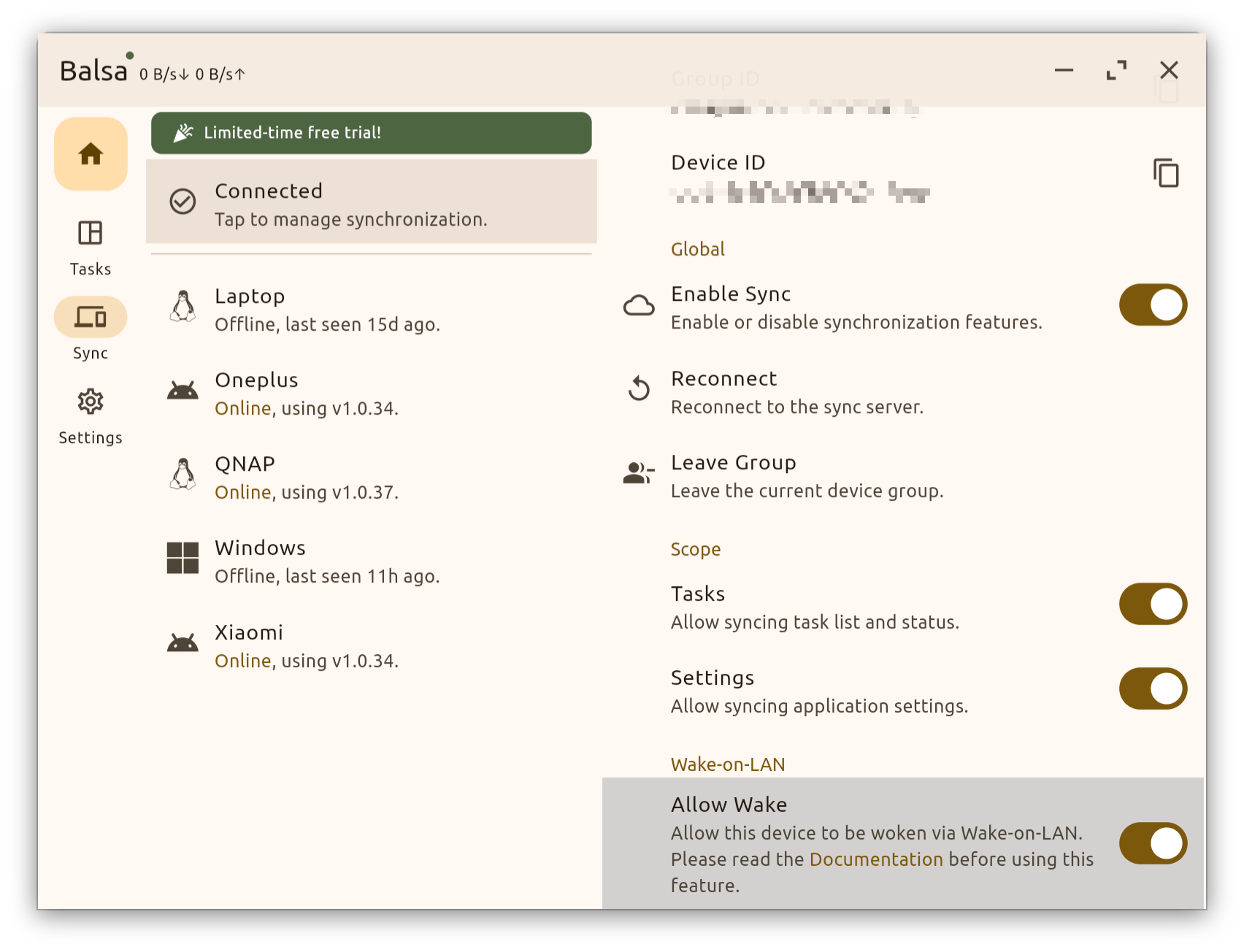
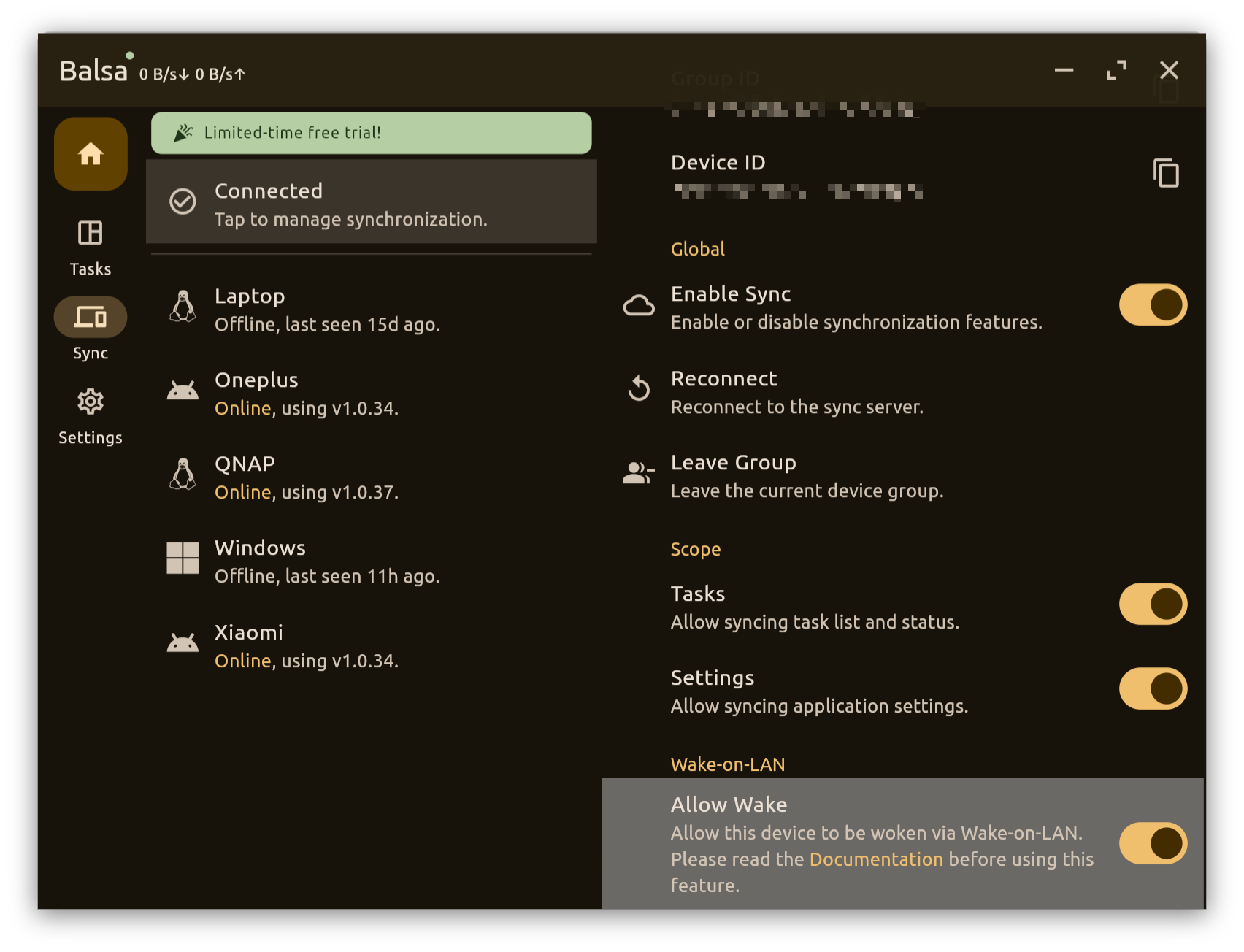
In Balsa, go to Sync -> Manage Sync -> Wake-on-LAN -> Allow Wake and set it to Enabled.